My Account
User guides and training videos
User guides and training videos

Overview | Set up my account | My Account service journeys | FAQs |
My Account (Customer Hub), also known as My Account for managed services and global products, is a secure, intuitive online portal for BT International customers. It consolidates all BT information and services in one place, reducing the need for multiple logins and websites. Customers can manage service requests, track incidents, and customise their dashboard to display relevant data.
To access My Account, follow our simple steps:
Enter your email or Username then click Next.
Enter your password then click Next.
Upon successful login, you should be taken to the My Account dashboard.
Having issues logging in? Please see our FAQs section
My Account enables you to navigate and manage your actions easily. You can also customise your dashboard so you’re viewing the information most important to you and your business.
Once you’ve logged into My Account you’ll be presented with your dashboard. You will see a quick snapshot of your services, data and products. Incorporated into the dashboard are customisable features such as widgets, so you can choose how you want to view your data.
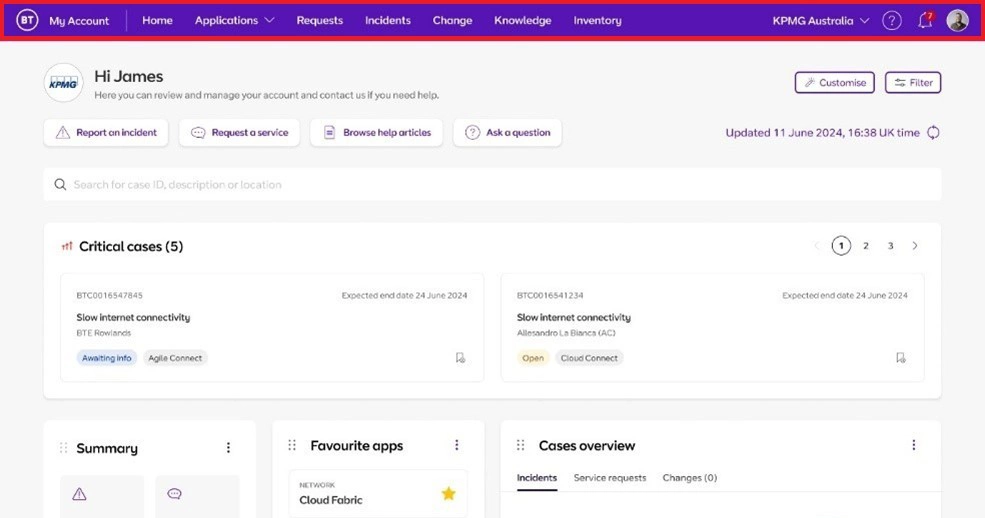
The Navigation bar (highlighted in red): From here you’re able to go to the dashboard, view Incidents and Service requests in ServiceNow and view your applications.
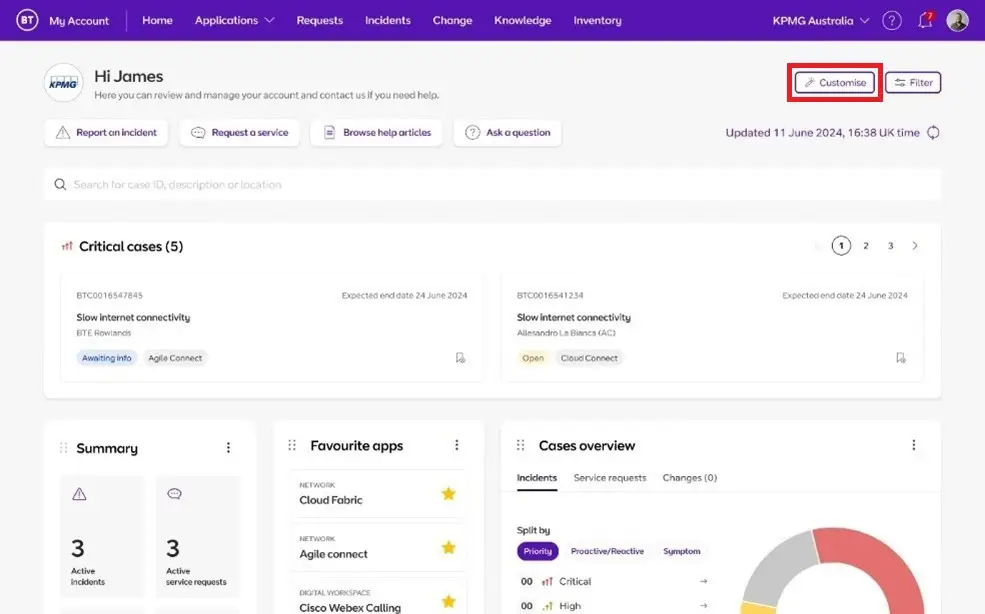
The customise button enables you to customise your dashboard so you can see what data and features you find most important.
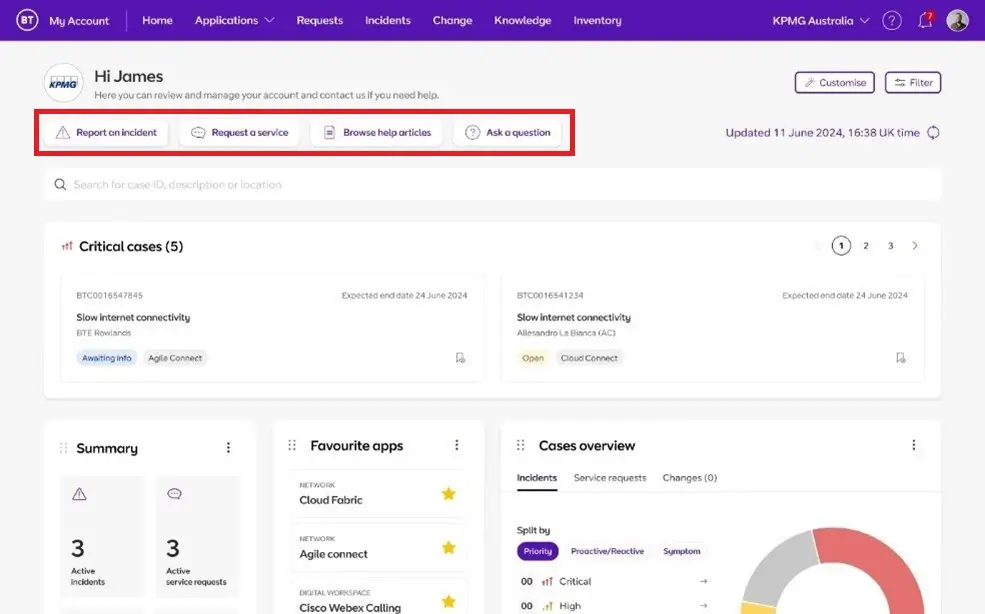
You can also find quick actions on the dashboard making it easier for you to report an incident, request a service, browse help articles or ask a question.
Incorporated into the dashboard are customisable features called widgets which enable you to view data related to your managed service easily. This could be a list of open incidents, a snapshot of your site inventory, your pending actions or a summary of your service request progress.
You can add, remove, resize or move widgets around on the dashboard to create a personalised view.
We’ve compiled a list of our FAQs. These have been divided into the following sections:
We try to ensure we can support users on the widest range of popular browsers and technologies, but to obtain the maximum benefit from My Account we recommend using a browser listed below:
Our developments are tested against these browsers. Although My Account can still be accessed using other browsers, the experience may be degraded.
At BT we’re serious about guarding the security of your personal data. We take all appropriate measures to protect any data you provide to us.
These measures include the use of a secure server and encryption when necessary.
To reset your password, follow these simple instructions:
1. On the login page, click the link Forgot log-in details?
2. Provide your username.
3 .Click the button Request password reset.
4. You’ll then be given a password reset link by email. Click the link in the email and you’ll be taken to a page to set a new password. Please note that this link is only valid for 24 hours before it expires.
To get a reminder of your username:
1. On the login page, click the link Forgot log-in details?
2. Above the box to enter your username click the link Forgotten your username?
3. Provide the email address the account is registered with.
4. Click the button Request reminder.
If the email address provided is recognised, your username will be emailed to you.
If your certain the details, you entered were correct it may be that your user account has expired due to inactivity. This happens after 180 days of inactivity however, before expiring your account, BT will send you several email reminders asking you to login to retain your account.
If you’ve not logged in for 180 days or more, please contact the My Account helpdesk on +44 203 564 5309 to have your account reactivated or a new account created.
This is a security measure and has occurred because repeated attempts to access your account using incorrect details, has happened.
When this happens, you’ll be notified by email. There’ll be a link in this email for you to request a self-unlock email.
After requesting this, you’ll be sent an ‘Unlock your account’ email. Click this link and your account will be unlocked. Please note, this link is only valid for 24 hours before it expires.
Among the security measures we take to protect your personal and company data we operate 2 types of access restriction.
If you don’t use your access for 120 days, we’ll inactivate your account. Prior to your account being inactivated, we’ll send you an email to remind you to log in. After your account has been inactivated, we’ll send you another email containing a link so that you can reactivate your account.
After 180 days of inactivity, we’ll delete your account. A few days before we delete your account, we’ll send you an email to remind you to reactivate it before it is deleted.
Please note all login sessions are limited to 30 minutes of inactivity.
To support our business objectives of simplifying and modernising our customer journeys and platforms, we’ll be closing My Account (GSP) which was built on our legacy platform. If you’re still using My Account (GSP) you’ll eventually be migrated onto My Account (Customer Hub) which is our newest strategic platform.
Although both versions of My Account let you manage your products, services and applications. My Account (Customer Hub) will bring a better customer experience. It also has ServiceNow integrated which is an online service portal so you can independently raise and track incidents or service requests.
Sometimes for operational reasons it might not be possible to migrate all your apps at once when you move to My Account (Customer Hub) and Service Now. If this happens then your migration team will tell you to access your old portal to use certain apps or journeys. You can switch between old portal and new portal using Switch Account feature without having to religion.
Learn how to switch between accounts with our guide >
We aim to deliver a system with as few problems as possible. However, if you do receive an issue, we recommend closing your browser, clear your internet cache then try again.
If your problem persists and isn’t urgent, you can complete this form and submit it to the My Account Service Desk
As the My Account service is across the internet, speed can be impacted by several factors including your PC, local networks, internet connections, the internet itself or our own networks/servers.
We work hard to ensure our systems and website work to the best of their ability to provide you with the brilliant service. Although at times there are things, we are unable to control which can sometimes cause pages to load slowly.
If you’ve got specific issues about performance, please complete this form and submit it to the My Account Service Desk.
Sometimes issues with our service can cause you to see error messages.
If your problem persists and isn’t urgent, you can complete this form and submit it to the My Account Service Desk
Site request should be used for any addition, modification or cessation of a service which will impact the inventory.
Soft change is limited to a simple configuration change that should not affect the site or network.
Physical modification is where there’s an impact on the site with either new equipment or a physical move of service/equipment.
Logical modification is usually a configuration or soft change for example, a QOS change or Bandwidth change where it doesn’t impact the BT aspect of router configuration.